Oct 2019 by Mary Bee
NARIP Manual Downloads Manual
Overview
There are occasions where a large file needs to be made available to a specific user e.g. issue with checkout in WooCommerce or the file is being given away as a promo.
This functionality was developed with custom code managed via the admin.narip.com site, however, since the time that was developed several WordPress plugins have been made available with the same or better functionality.
Currently installed is WP Download Manager. The product overview can be read at https://www.wpdownloadmanager.com.
The purpose of this guide is to present the most common use cases and how to configure the plugin to achieve those cases.
Base Configuration
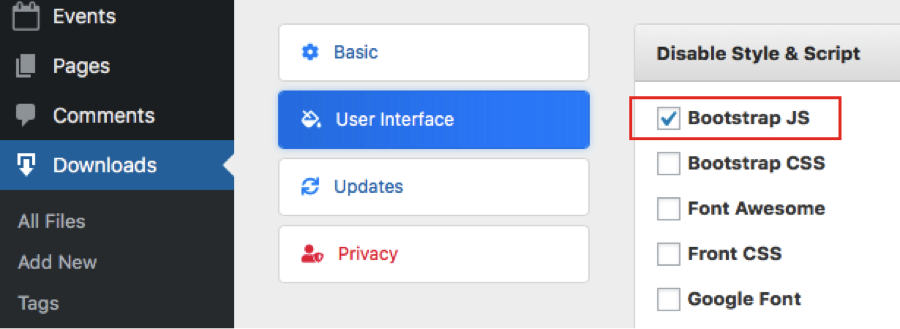
The plugin installs in the normal fashion but must have bootstrap.js disabled as it conflicts with the menu system in the current theme (naripnew).
Use Cases
Use Case 1 – Make a Single File Available to a Single User
The file to be used will already have been uploaded via FTP t o the /downloads folder.
In the WP Admin (www.narip.com/wp-admin) navigate to Downloads à Add New
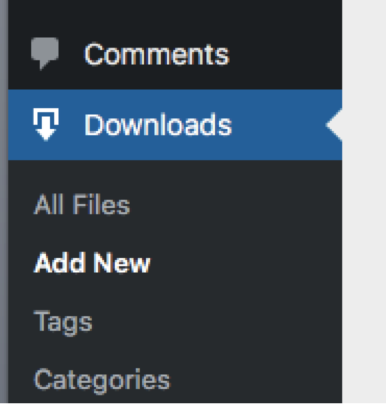
At the top of the page enter the title of the download. This can be the name of the file or a name for a group of files. Make it easy to use for finding later.
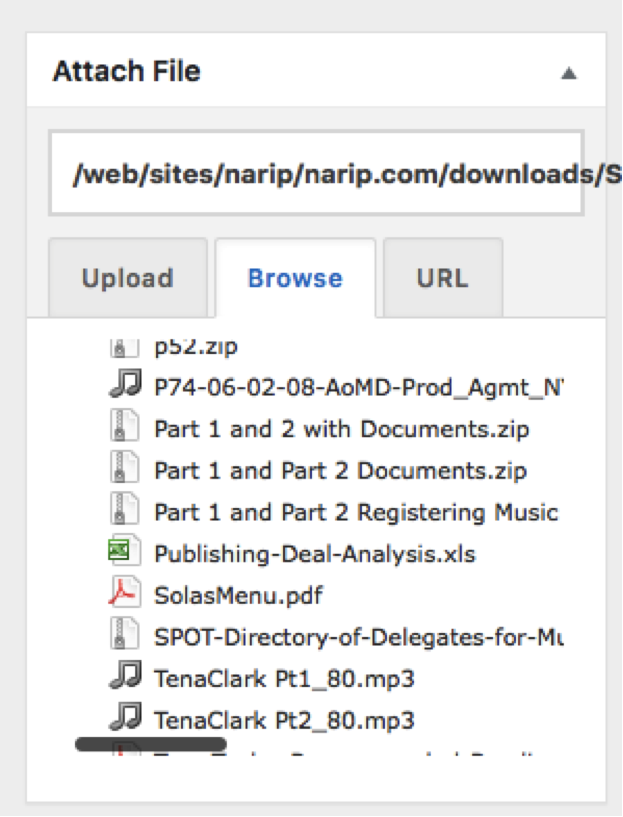
On the right Attach File box click the Browse tab and scroll down the downloads folder. Click the downloads folder to expand it and find the file needed. A test file “SolasMenu.pdf” is available for testing. Click the file and confirm the popup dialog box.
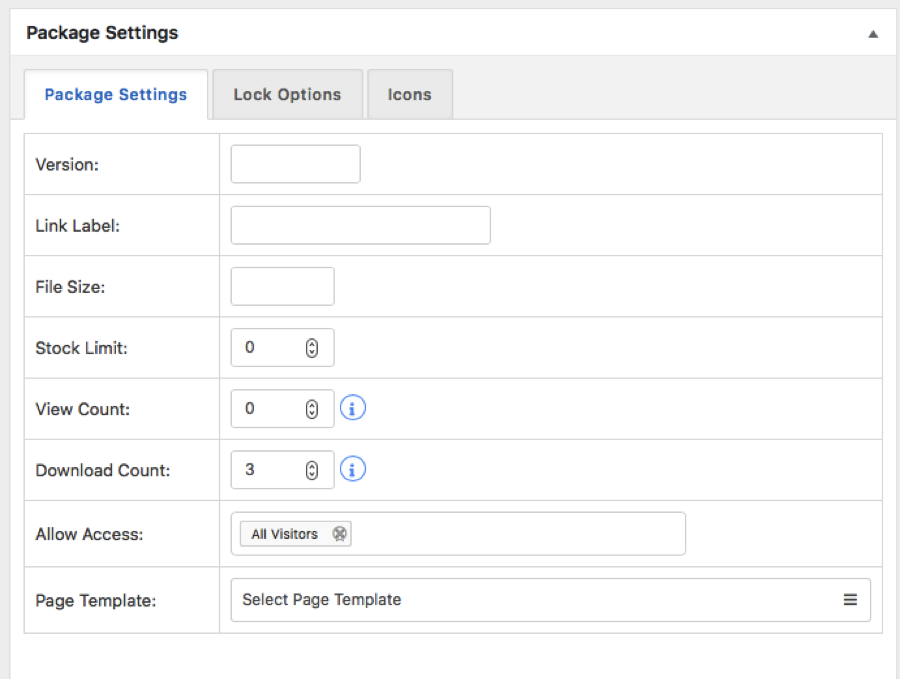
Scroll down to the Package Settings box in the center of the page.
On the Package Settings tab set the Download Count to 3
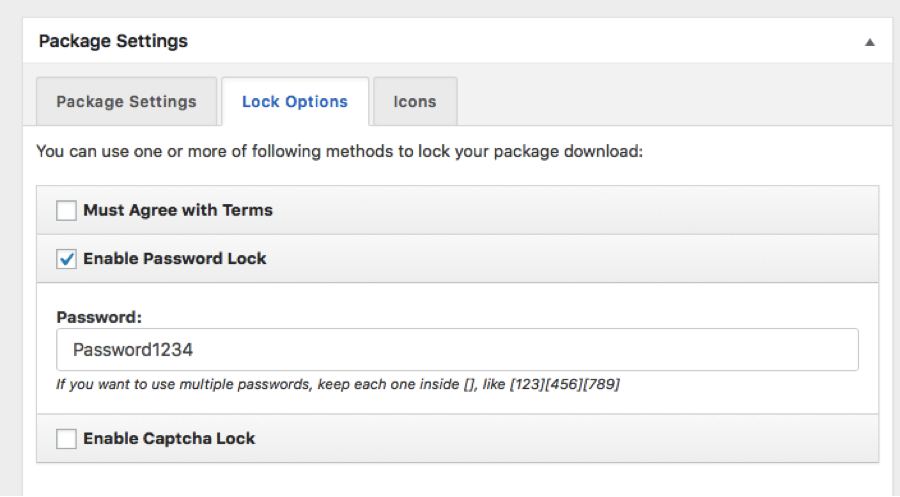
On the Lock Options tab check Enable Password Lock and enter the password for access to the file. Note that multiple passwords may be used but of assigning to a collection of users the download count may need to be increased to match.
Click Publish. You now have a link to send to the user along with a password.
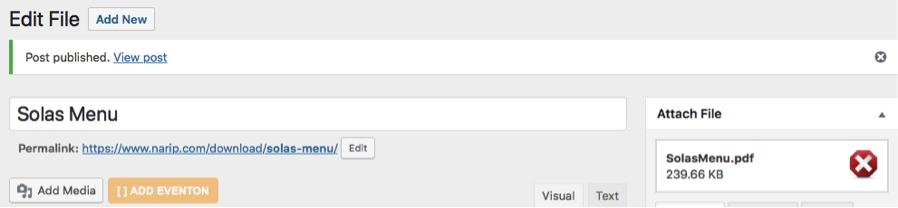
Anyone clicking this link will arrive at a detail page for the download.
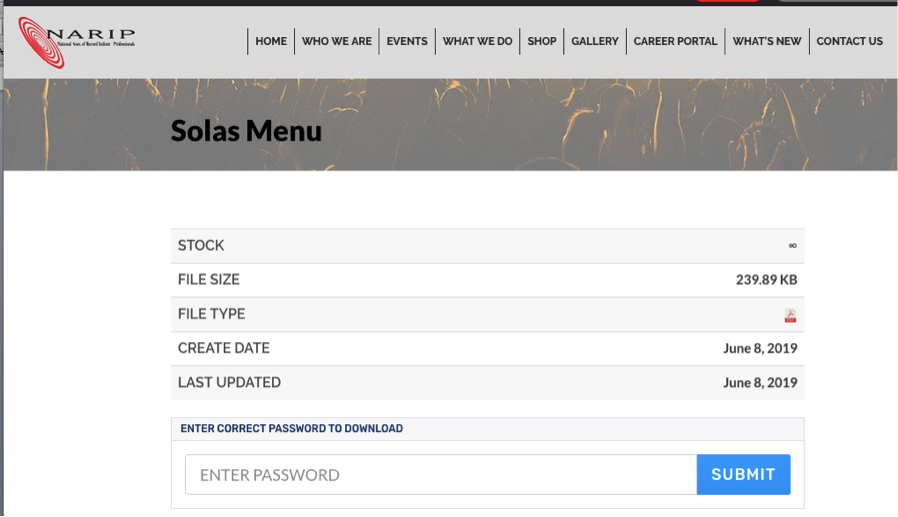
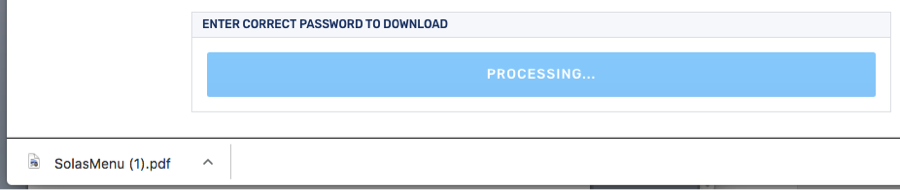
After entering the correct password the file is downloaded. Bad passwords do not warn the user. Passwords are case sensitive.
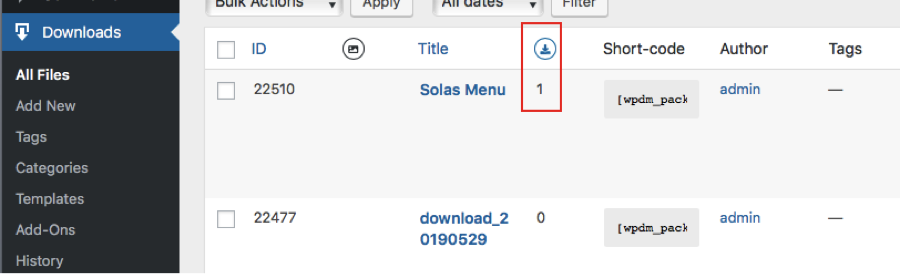
To monitor the file downloads enter the Downloads Admin described above clicking on All Files. The number of downloads will appear in the column to the right of the title.
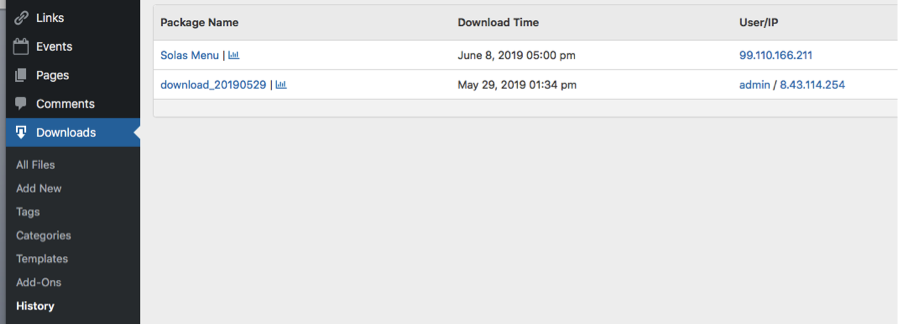
Clicking Downloads à History shows a report of all the downloads with drill down details.
Additional use cases will be developed as they arise.