Created by Lola February 7, 2020
- Have the Mp3 of the audio on your desktop
- Open Filezilla and enter credentials
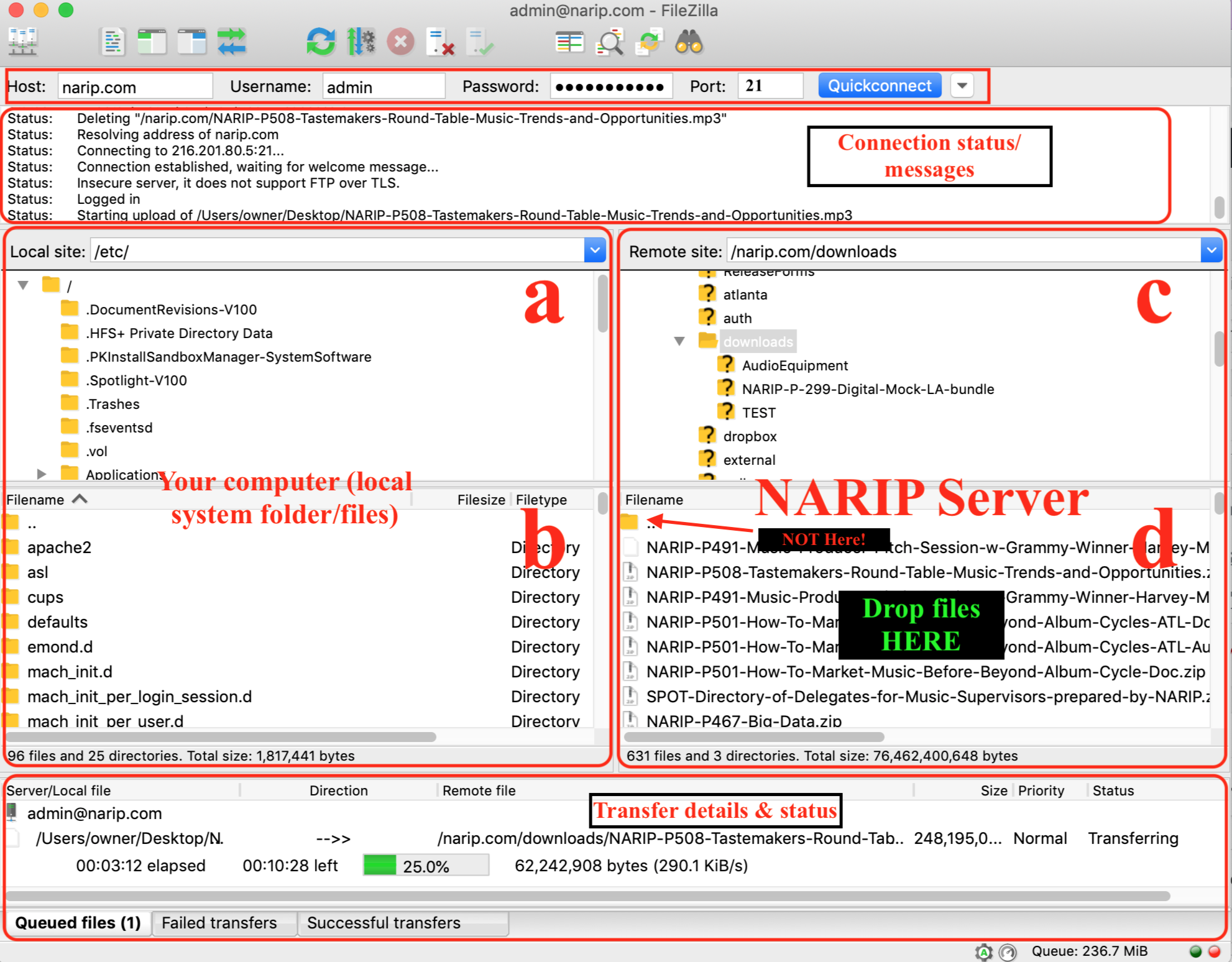
- In section C click on: narip.com > downloads
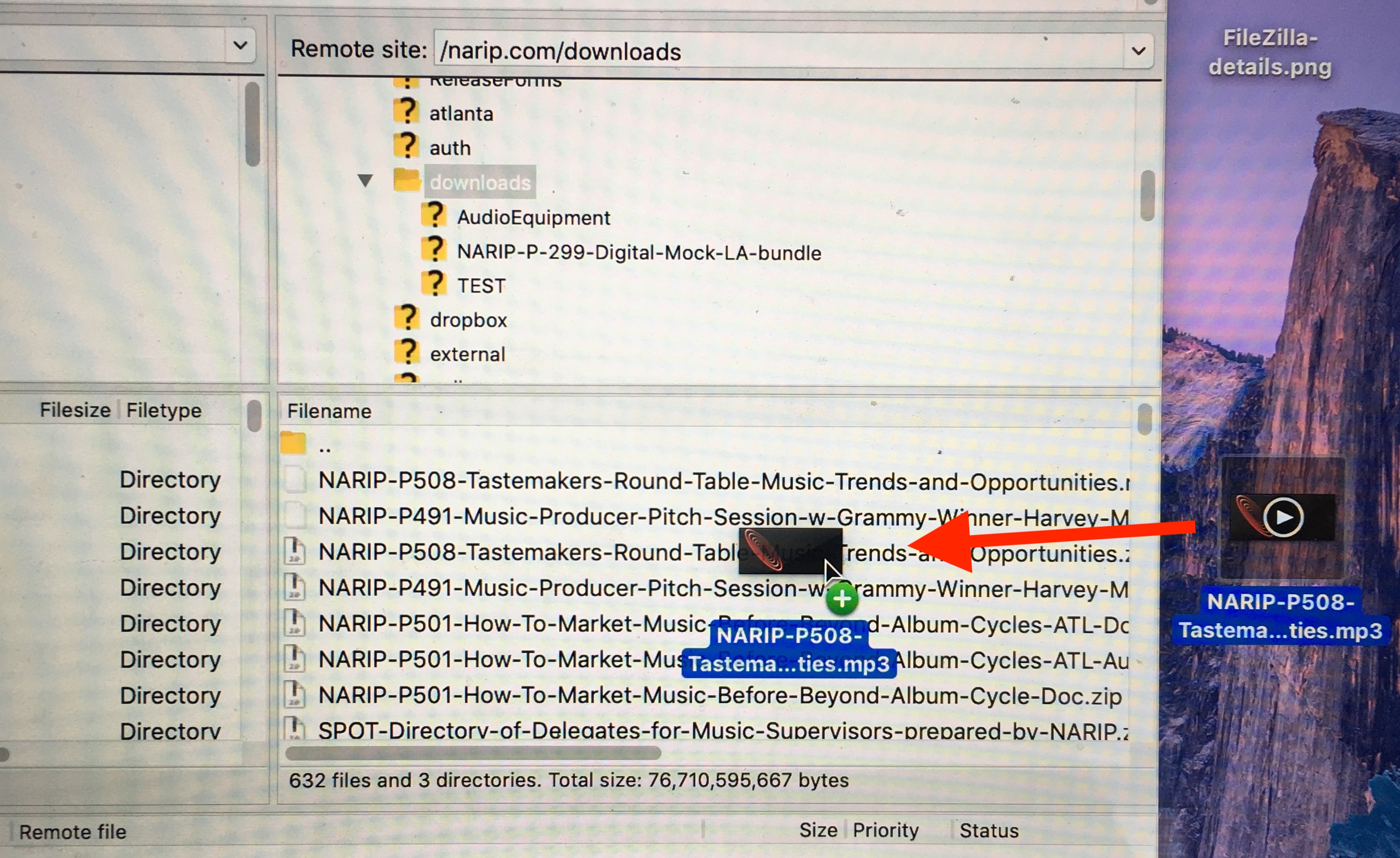
- In section D you will see an icon of a folder followed by several files. Drag and drop the Mp3 file from your desktop into the center of section D. (NOT into the folder icon)
- Go to the NARIP Dashboard
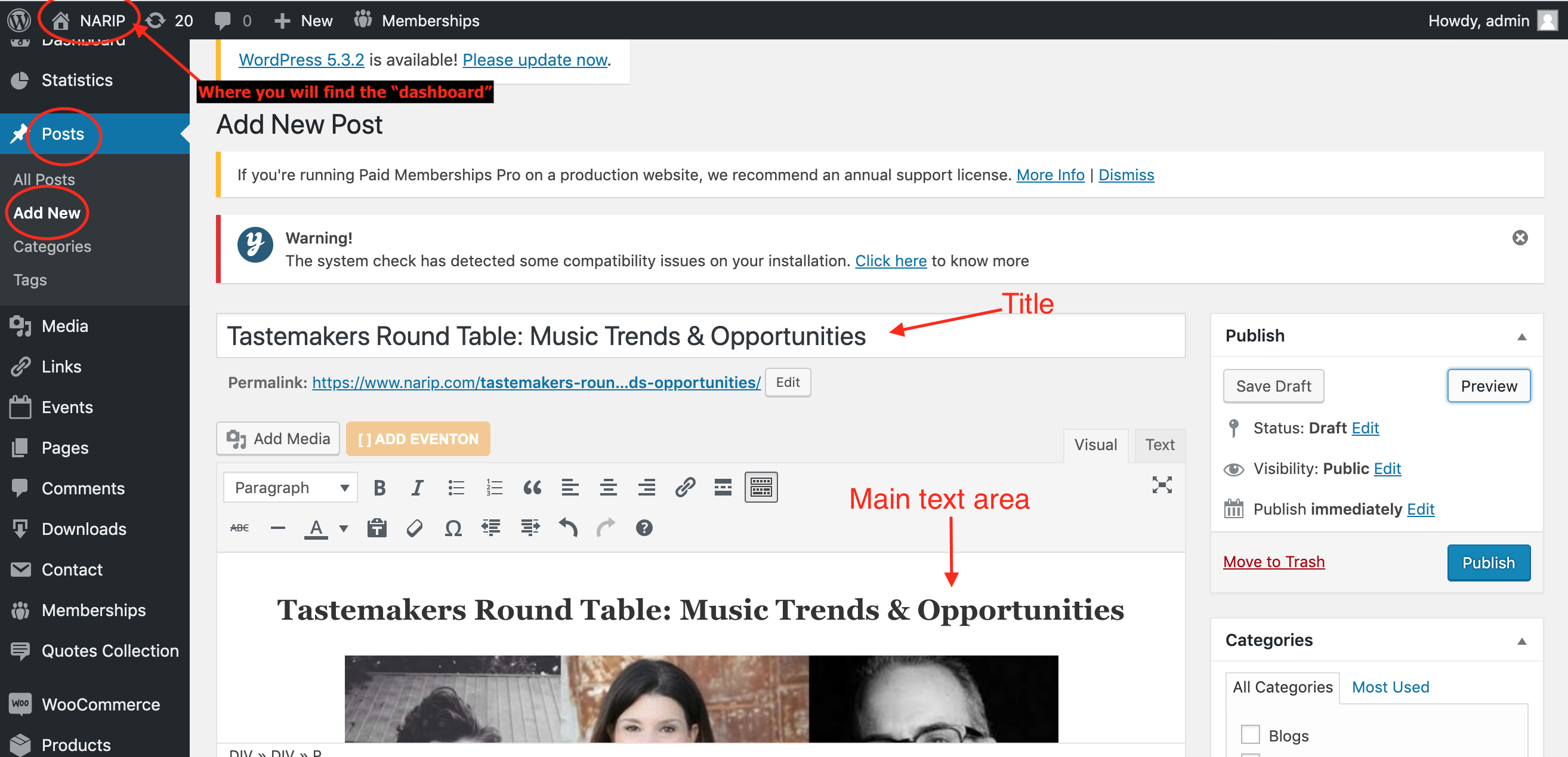
- On the left side, click on: Posts > add new
- Enter the title of the post
- In the main text area, you can input all the information by copy and pasting from the events page. HINT: if you have already created a product for the same item, it is better to copy and paste all the information from there rather than the event page.
- Open a new tab and go the the NARIP website. Click on the “Events” red square.
- Click on “Search Past NARIP Events”
- Find the Event that corresponds with the product you are listing. You can do this by scrolling through the dates or entering in a key work, such as the name of a speaker.
- Once you click on the event, select all and copy the content. Then paste the content into your product page in the main text area.
- Filter out any information that is not needed or no longer pertains to the product (i.e. ticket pricing and RSVP info)
- What should be included in the main text area:
- —> Program Description: mention the topics that are discussed
- —> Product Details: (NARIP program number, date, time, and NARIP contact info
- —> Sources of info: external links to guest speakers websites or social media accounts.
- Speaker Profiles: Guest speaker’s picture along with a short bio.
- Underneath the Program picture, copy & paste the following code:
- [sc_embed_player_template1 autoplay=true fileurl=”http://www.narip.com//downloads/NARIP-P491-Music-Producer-Pitch-Session-w-Grammy-Winner-Harvey-Mason-Jr.mp3″]
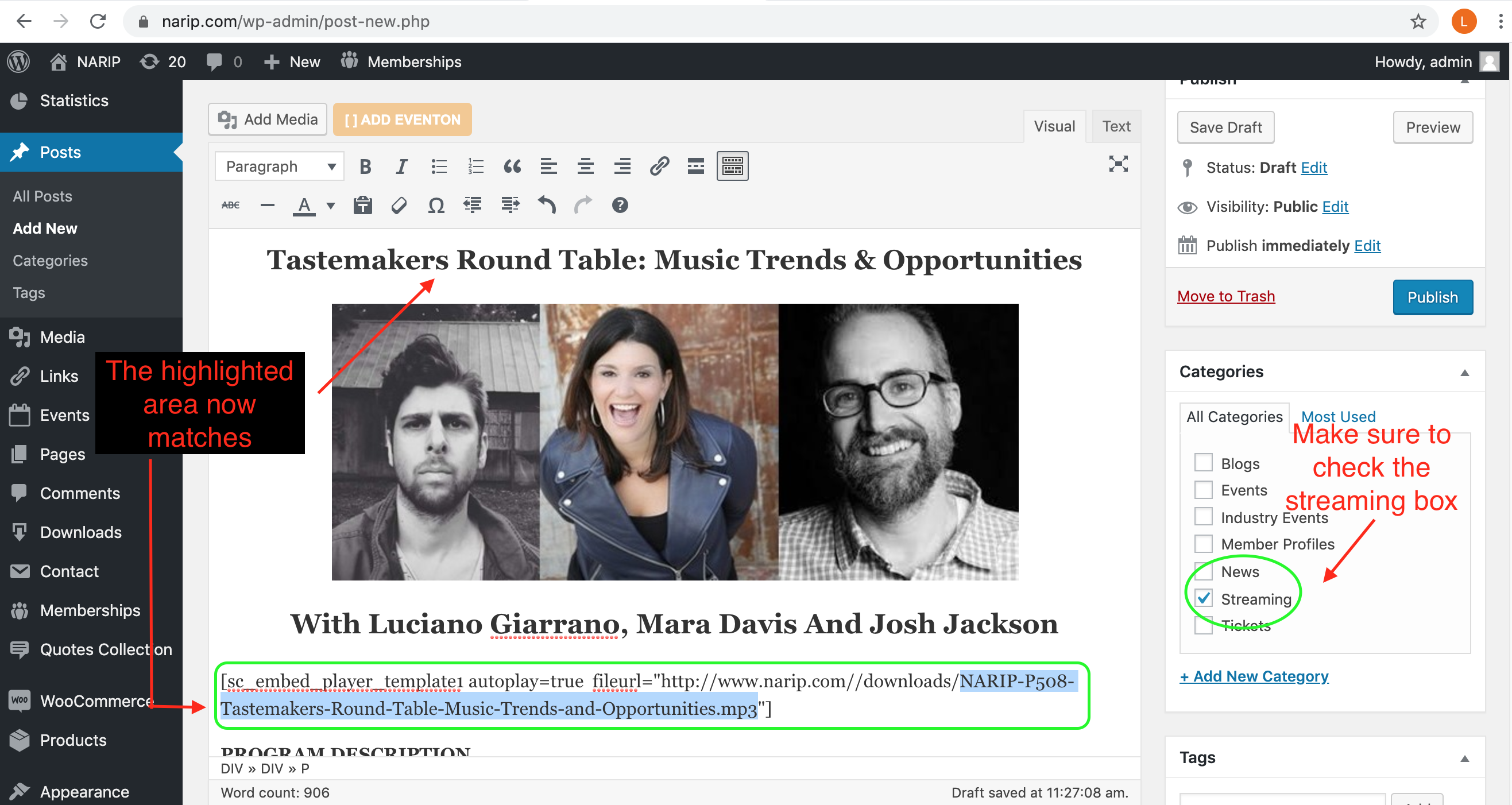
- You are going to replace the highlighted section with the new item title like so:
- [sc_embed_player_template1 autoplay=true fileurl=”http://www.narip.com//downloads/NARIP-P508-Tastemakers-Round-Table-Music-Trends-and-Opportunities.mp3“]
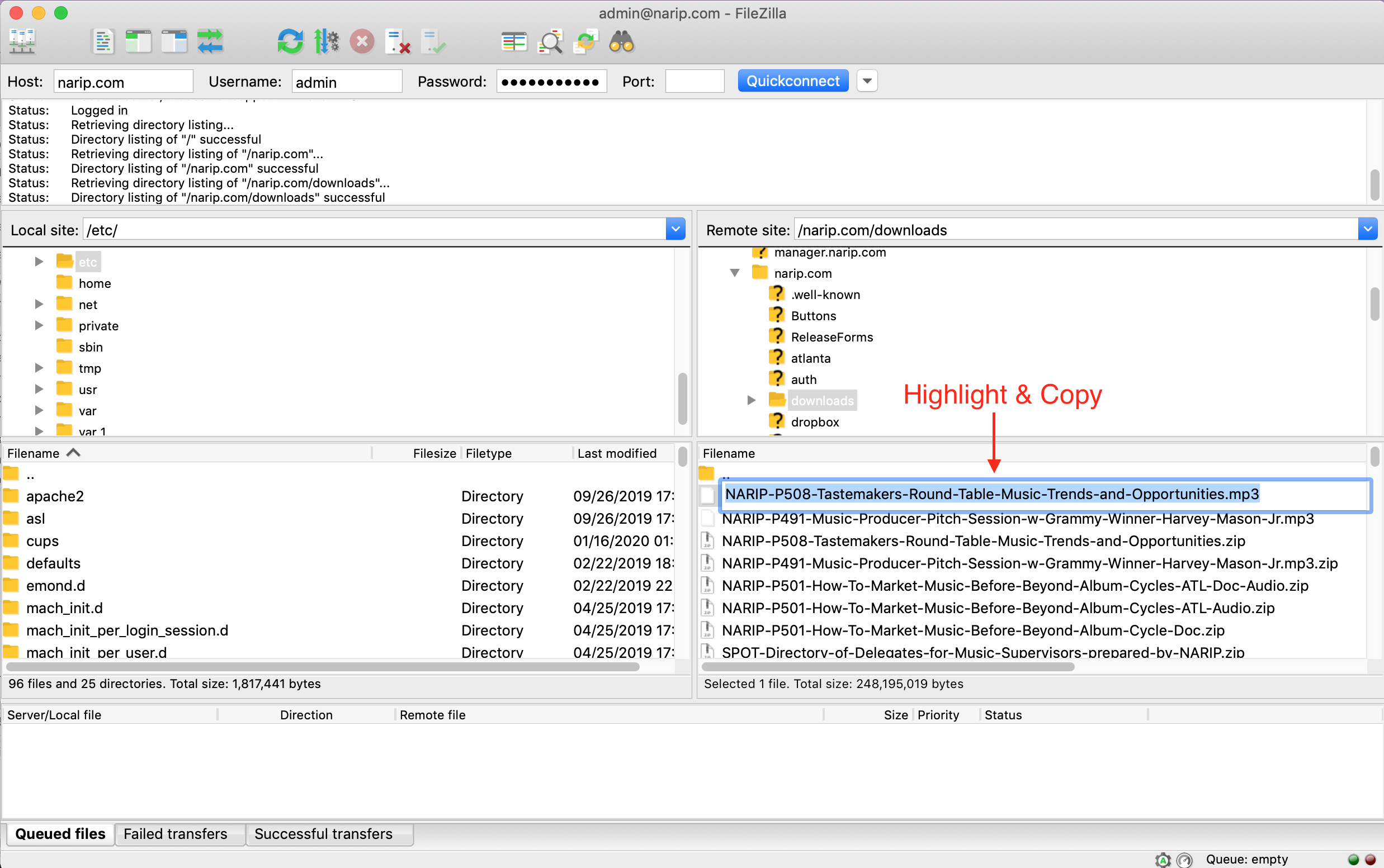
- To do this, go back to FileZilla and copy the name of the file
- Then paste this into the area as mentioned earlier:
- Skip Quick Page/Post Redirect
- Then go to the excerpt section directly beneath
- write a short description of the program. you can usually copy and paste a sentence from the main text area. i.e. “This audio program is a recording of NARIP’s Taste Makers Round Table Panel with special guest speakers Immersive Atlanta’s Luciano Giarrano, Adult Swim’s Mara Davis, and Paste Magazine’s Josh Jackson.”
- Skip Send Trackbacks
- Under Discussion the “Allow trackbacks and pingbacks on this page” box should automatically be checked off
- Then go to the slug section directly beneath
- Enter title of post separated by dashes (no spaces). i.e:
- Tastemakers-Round-Table-Music-Trends-and-Opportunities
- Under Author it should automatically be: admin (admin)
- Under Light SEO enter the following
- For the title enter the name plus “NOW STREAMING” i.e.:
- NOW STREAMING: Tastemakers Round Table: Music Trends & Opportunities
- For the description enter a very short description i.e.:
- “Hear 3 execs who book, market, review, develop & promote musical talent.”
- For keywords enter music business terms plus the speakers names and their affiliations. i.e.:
- “NARIP, music business event, music business networking, Mara Davis, Adult Swim, Luciano Giarrano, Immersive Atlanta, Josh Jackson, Paste Magazine, Ken Green, personal artist manager, artist development”
- DO NOT check the box “disable on this page/post”
- For the title enter the name plus “NOW STREAMING” i.e.:
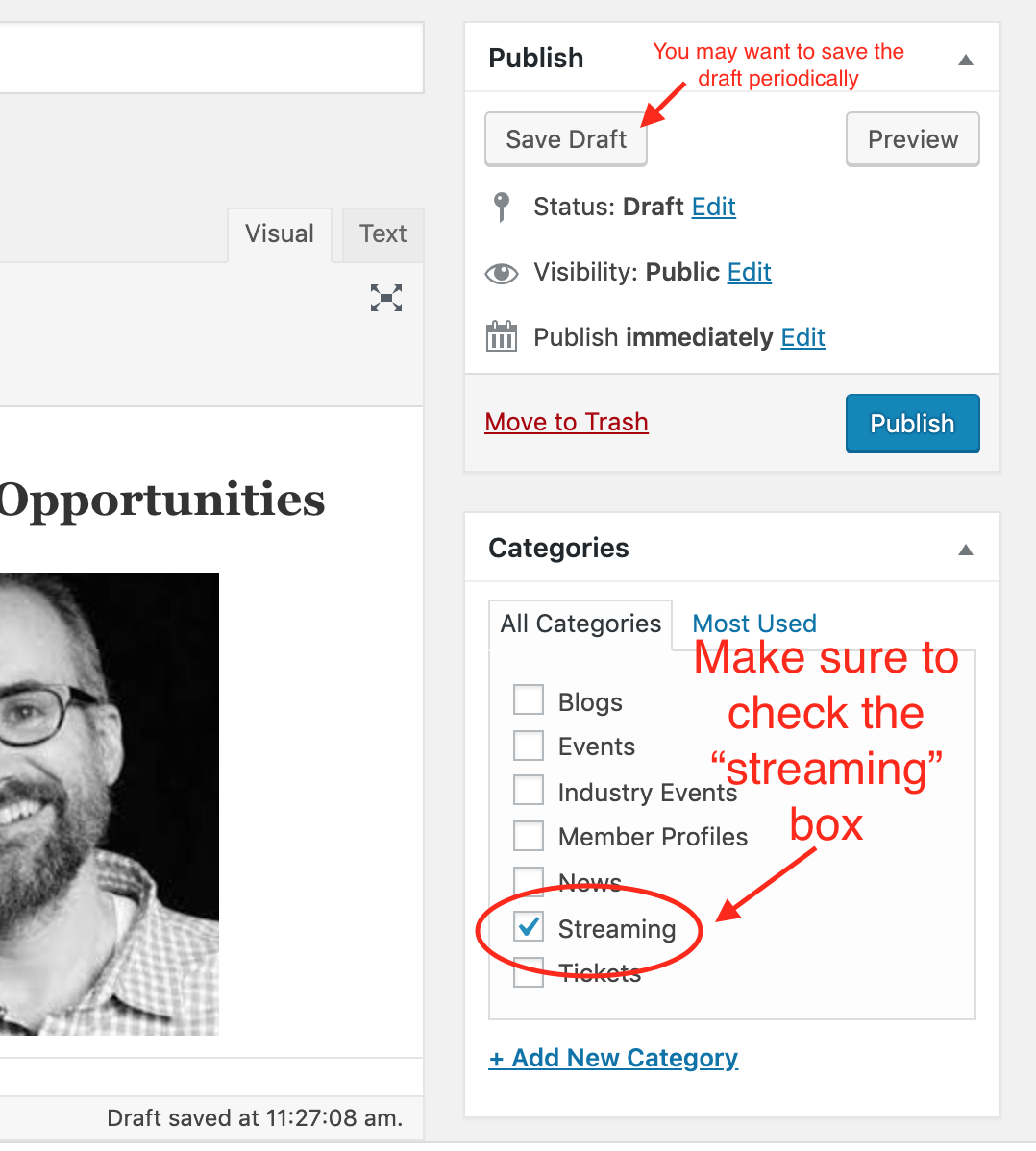
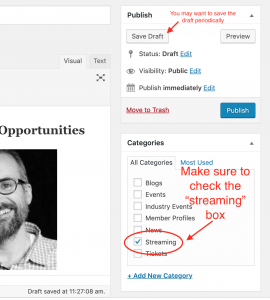
- Scroll back to the very top of the page and you will see the Categories section
- make sure to check the “streaming” box
- Then go the product tags section directly beneath. To fill this out, enter any key words you can think of that relate to the product/program. This should include:
- Topics such as: A&R, Synch, Artist management, music business
- Guest Speaker Name
- Any company, project, or artist the speaker is associated with.
- **Hint: many of these terms are already in the main text area where you copied and pasted information from the event page. Use them and any other words you find useful!
- **Hint: if you have already created a product in the shop for this item, you can just use all the tags from that instead.
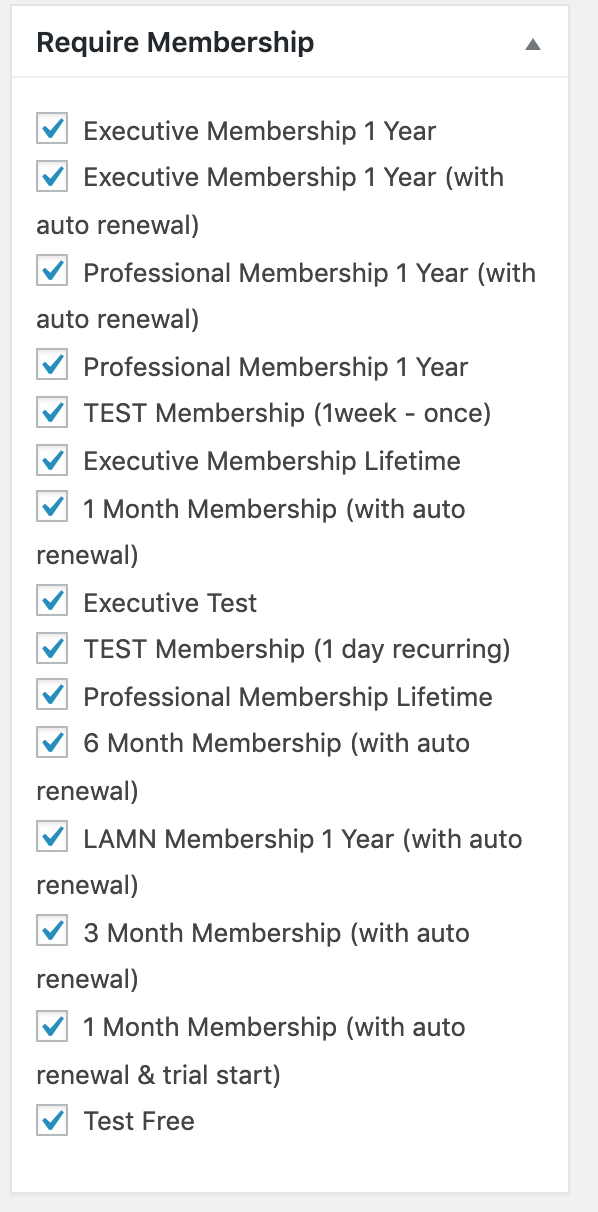
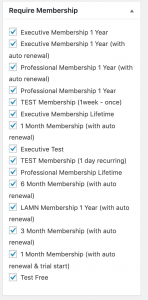
- Then go to the Require Membership section directly beneath
- check off all the boxes
- Then go the Featured image section directly beneath.
- Click on “add product image”
- Type in the name of guest speaker or other key word in the search bar to find an image for the product.
- If there is no corresponding image or guest speaker picture, download one from google images and upload it by clicking on “upload files.” once uploaded, then click “set product image” button.
- Then scroll back to the top to the Publish section, which is in the same right column above Categories section. Click on “Save Draft.
- Under Format the “standard” box should automatically be checked off.
- YOU ARE DONE! Let Tess know that it is saved to drafts and send her the link.