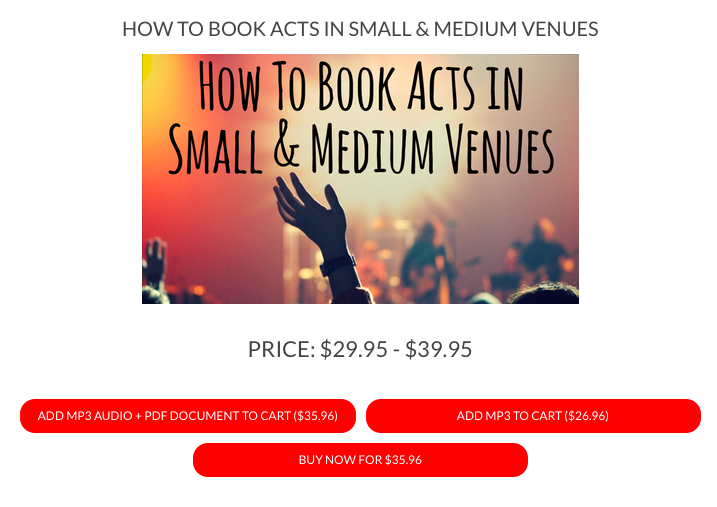
Variable products in Woocommerce are those that change price depending on the options selected. MP3 or MP3 + PDF being the most common. A default option must be set for the Buy It Now button to display.
A variable product basically has child products created under the parent product which has the main description.
Start by creating the overall product with title and description. Below the description area is the Product Data section.
- Set the Product data type to Variable product.
- Click the Attributes side tab and add the attribute Configuration.
- Save attributes.
- Click the Variations side tab
- Select Add Variation and click Go.
- Repeat this for each variation to be created (e.g. MP3, MP3 + Transcript)
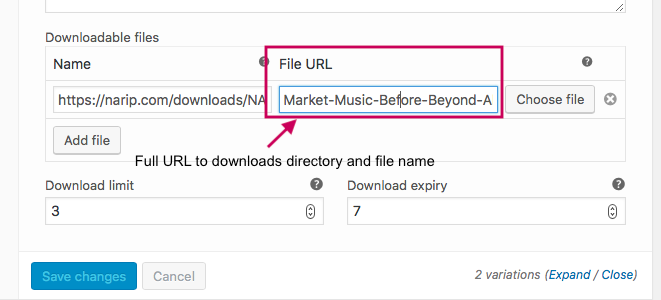
- For each variation select the type of variation, set the price and set the file path for the file(s).
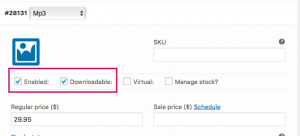
- Ensure the variation is set to Enabled and Downloadable
- Setting the files location requires entering the exact location of the file manually as they are too large to be uploaded via a web page.
- When everything is set properly, the variable price range will display on the product as well as a Buy It Now button for the default option.